When you are using an “off the shelf” WordPress theme (i.e. one that you didn’t code from scratch or have built for you), there may be circumstances where you want to customize it beyond the scope of the controls it gives you.
There are best practices for customizing WordPress without doing anything that will break your site or make it a nightmare to maintain.
Learning from the beginning how to customize the right way will make your future-self’s life much easier:
Your changes will be future-proofed to keep each layer of your site update-able: WordPress core, themes, plugins.
Using WordPress best practices means that if you are building the site for someone else to maintain, or if you will have someone else helping you in the future, they won’t have be Sherlock Holmes to figure out how the site works.
You’ll have confidence and peace of mind when experimenting with your site, knowing that you’re not going to break something beyond your own ability to repair.
A common question I get from new WordPress users (twice in the past week as a matter of fact), typically arriving in a panic-stricken email, is “Why am I getting notices of new user registrations on my site?” The follow-up questions are along the lines of “Have I been hacked??” “Is this spam?” “How do I make the madness stop?”
The answer is thankfully simple. There’s one little setting in your WordPress dashboard which is needlessly (at least in most cases) allowing people to register for your site. Unless you’ve deliberately customized it, the registration screen is at the same url on most WordPress sites:
So it’s easy for spambots to find that page in an automated fashion. And those spambots love a good form to fill in whether that’s a comment form, a contact form or a registration form!
I’m loving this new plugin I recently discovered called Menu Social Icons. In a simple and elegant fashion it allows you to easily add icons to the major social networks directly into your WordPress menus. There has always been a multitude of plugins to let you add social icons to your widget areas, but sometimes there’s just not a widget area where you need one to be. So now you have the option of adding icons wherever you have a WordPress navigation menu.
If you’ve used WordPress even just a little bit, you’ve probably come up against the fact that it’s really hard to add extra space into the editor. You can only hit “return” a couple of times before it starts eating those extra line spaces you’re trying to create.
So if you want to create extra empty space in your page or post – anything beyond a paragraph break or two, you’ve probably pulled your hair out. This guide will show you the reliable ways to work with spacing in WordPress.
Adding a blank or empty line in WordPress
Hitting the Enter or Return key in the WordPress editor will create a new paragraph. This will leave a blank line before starting a new line.
If you don’t want to skip a line, you can use a line break instead. To do that, hold down the Shift key while pressing Enter/Return. This will start a new line without making a new paragraph.
Add a line break in a WordPress list
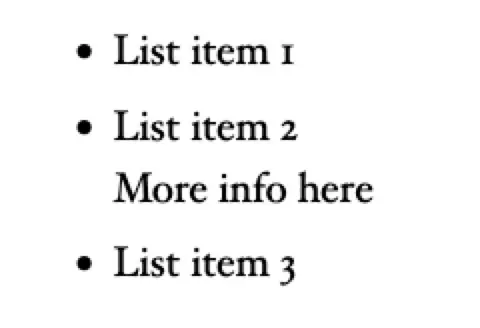
If you hit Enter while in a list, you will create a new bullet point. If you don’t want to do that, but just have a line break within the same list item (see item 2 in the screenshot below), hold down Shift and press Enter.
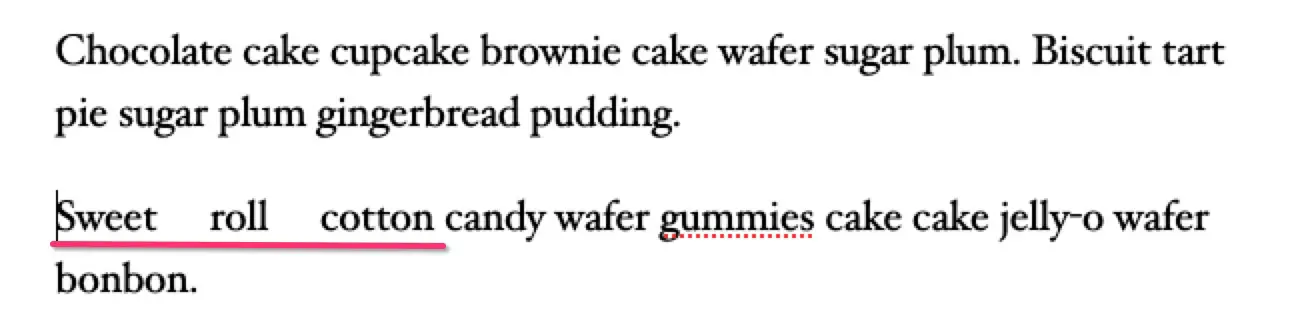
How to add space between letters in WordPress
To add spacing between letters in the Block Editor:
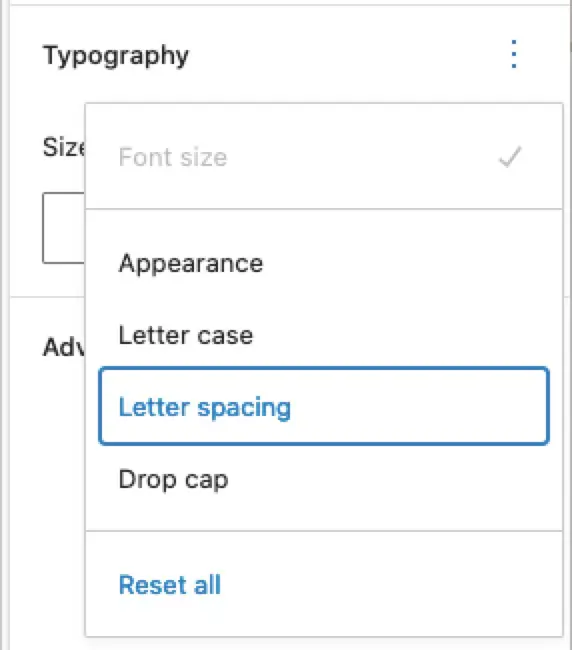
Click on the text you want to change. In the right panel, make sure the Block options are showing.
Click the 3 dots next to Typography
Click letter spacing
Choose the unit of spacing and set the value.
Note that this applies to all the text in the block.
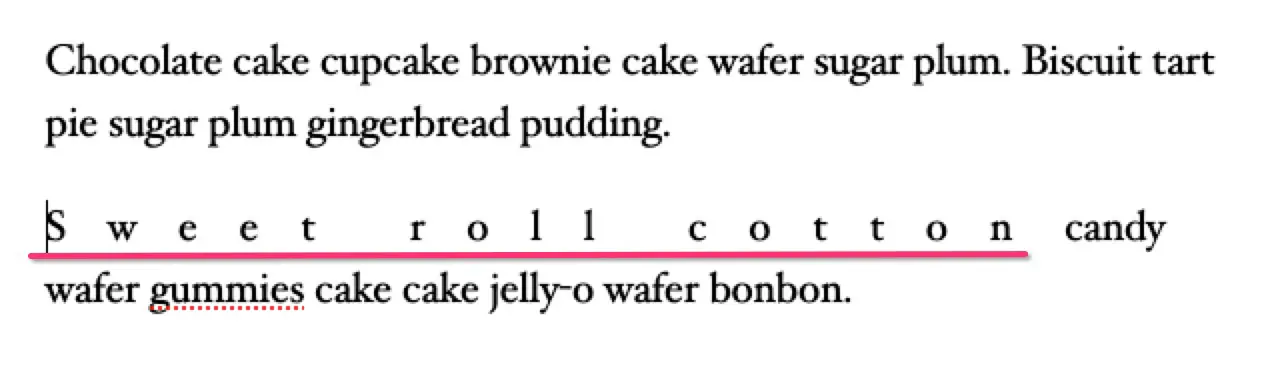
If you want to apply the spacing to specific words within the block, you have to edit the HTML directly.
Select the block that contains the text
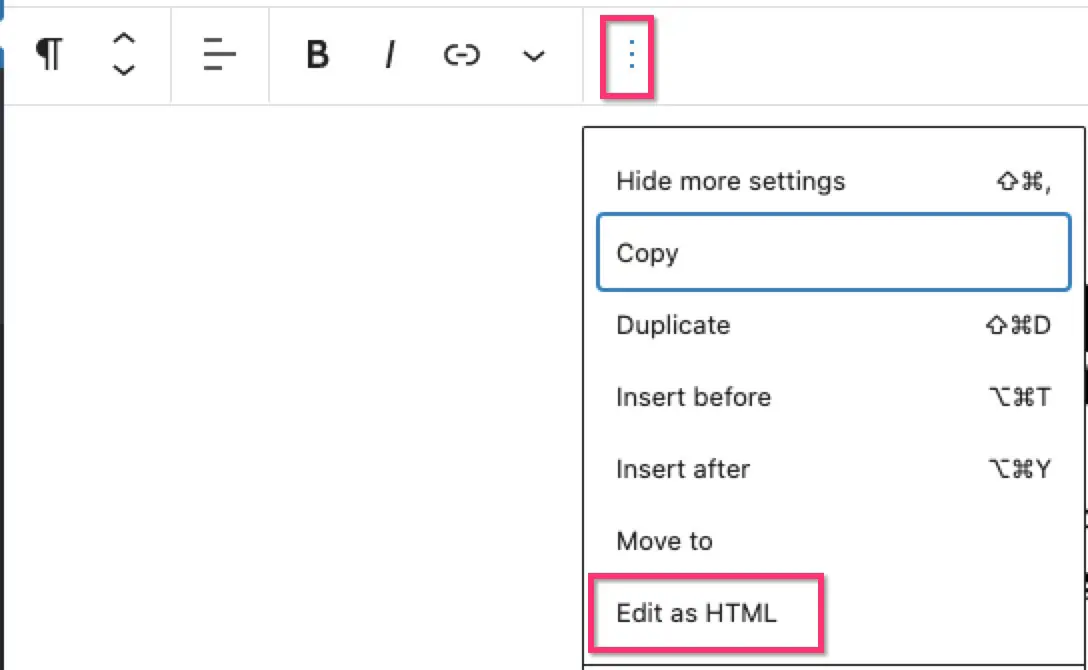
In the top toolbar, click the 3 dots and select Edit as HTML
The code we will add is: <span style="letter-spacing:1em"> Your text here</span>
Look for the text you want to change. Immediately before it, paste: <span style="letter-spacing:1em">
After the text you want to change, paste </span> – this closes the style and ends the spacing.
When you are done editing the HTML, click the 3 dots again and select Edit Visually.
How to add space between words in WordPress
There isn’t a way to do this without editing the HTML (that I have found). Possibly some plugins that extend the editor might have this feature, but since it probabbly shouldn’t be used much, adding one of those plugins just for this, would be overkill.
Select the block that contains the text
In the top toolbar, click the 3 dots and select Edit as HTML
The code we will add is: <span style="word-spacing:1em"> Your text here</span>
Look for the text you want to change. Immediately before it, paste: <span style="word-spacing:1em">
After the text you want to change, paste </span> – this closes the style and ends the spacing.
When you are done editing the HTML, click the 3 dots again and select Edit Visually.
How to add spacing between blocks in Gutenberg / block editor
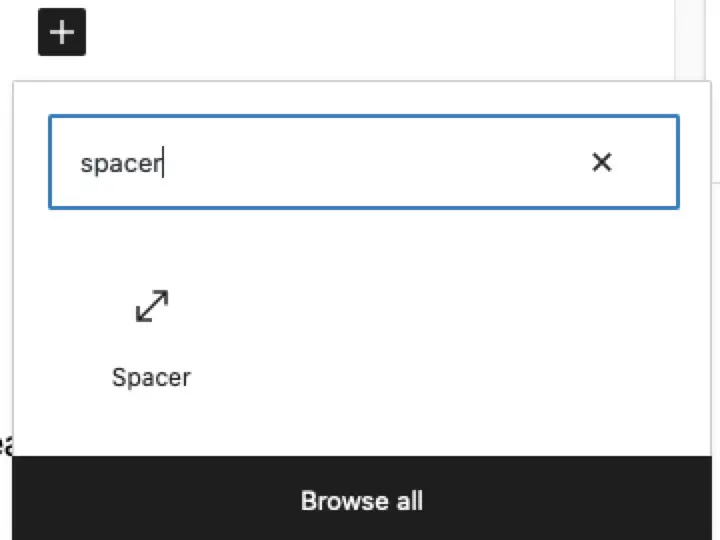
The Block editor makes it quite easy to add vertical space between blocks. There is a block called Spacer which is there by default.
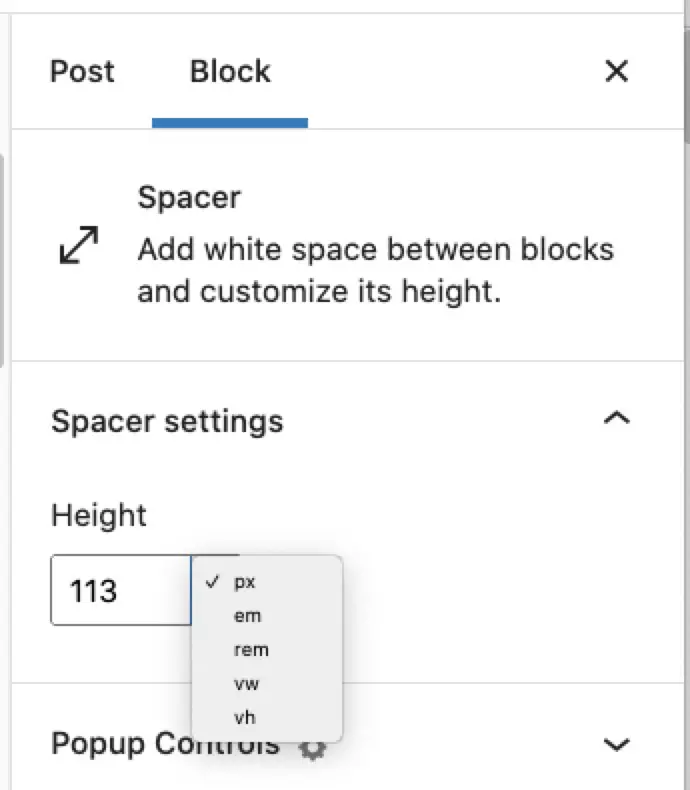
Simply add it and then choose how much space you want to add.
You can choose any of the following units to set the space in:
Pixels is the simplest and one we are all mostly familiar with. The problem is that this won’t scale with different device sizes. For example, if you add 200 pixels of space, it may look fine on desktop, but may be too much for mobile.
So using one of the other relative units may be a better choice.
You can also click on the block and drag the edges to expand or reduce the size of the block.
Adding space in the Classic Editor
There’s several workarounds you can use if you happen to know HTML but that horrifies many non-techie WordPress users. Well the best way I have now found is an awesomely simple and to-the-point plugin called Spacer.
Want to highlight your social media profiles in any widget area of your WordPress site? Here are the best-looking and easiest to use, social media widgets for WordPress.
When the same question crops up again and again, it’s time for a blog post!
Changing your WordPress theme can be a scary prospect if you’ve already invested a lot of time and effort building your site – what if you click the button and ‘poof!’ your site becomes dust?!
So here’s a guide to what will and won’t change about your site when you switch themes. Depending on the specific themes you are switching between your experience may be more or less tricky.
The overarching rule is that anything that is a core WordPress feature will remain, and all plugins and their features will remain, but anything that is theme-specific will no longer be available to you.
So let’s dig a little deeper into what this means.