
2 Ways To Safely Customize Your WordPress Site Without A Child Theme

This year (2016) I gave a talk at WordCamp San Diego as part of the Beginners’ Bootcamp, entitled “Customizing Without Hacking”. It was an introduction to best practices for customizing WordPress without doing anything that will break your site or make it a nightmare to maintain.
Learning from the beginning how to customize the right way will make your future-self’s life much easier:
- Your changes will be future-proofed to keep each layer of your site update-able: WordPress core, themes, plugins.
- Using WordPress best practices means that if you are building the site for someone else to maintain, or if you will have someone else helping you in the future, they won’t have be Sherlock Holmes to figure out how the site works.
- You’ll have confidence and peace of mind when experimenting with your site, knowing that you’re not going to break something beyond your own ability to repair.
Creating a child theme is a common piece of advice for customizations. Sometimes a child theme is necessary and sometimes it can be overkill. If you need to modify PHP template files, you will definitely need a child theme. But if you are just modifying CSS, or your functions.php file, you don’t necessarily need one.
Here are 2 ways you can safely customize your site without having to create a child theme. These methods can be a good starting point for beginners who aren’t quite ready to mess around with FTP and some of the other steps needed in making a child theme.
In the workshop, we had participants set up a local environment using Desktop Server to avoid “cowboy coding” i.e. making changes on a live site. Hopefully you have your own local environment or a staging site of some kind, where you can try out these techniques. If you don’t, you can create a sandbox or staging area using this guide.
CSS customizations
For anything you would typically add to your style.css, you can use the Modular Custom CSS plugin instead. After activating this plugin, you’ll see it by going to Appearance > Customize > Custom CSS.
The changes you enter here are stored in the database, so you can safely update your theme without losing them.
Try It Out
This is a simple customization to the Twenty Sixteen theme. It increases the font size of the site title and changes the color. Copy the following code and paste it into the Custom Theme CSS box:
.site-title {
        font-size: 3.75rem;
        }

.site-branding .site-title a {
	color: #FF0000;
}

.site-branding {
margin-top: 0px;
}
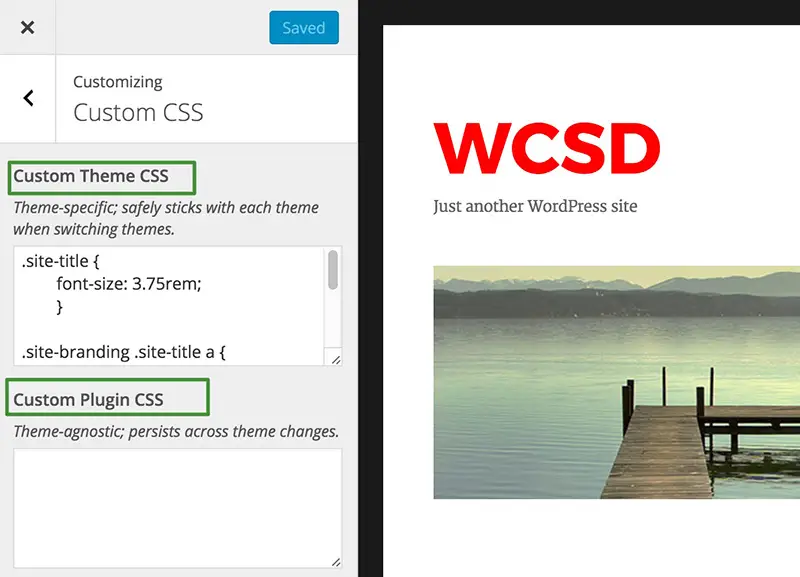
“Custom Theme CSS” means that the CSS applies only to the current theme. If you change themes, it won’t be there.
But if you’re modifying how content or a feature from a plugin looks, you would want that to persist even if you change your theme. In that case you would enter your changes in the “Custom Plugin CSS” box.
PHP Functions
For anything you would typically add to your functions.php, you can use the My Custom Functions plugin instead.
Touching PHP, even when just copy/pasting code, can be a bit daunting because you have the ability to whitescreen your site if you make a mistake, like missing a bracket, for example.
This plugin provides a safety net because it won’t let you whitescreen your site. After your enter your code and hit Save, it will test the code and if it would ordinarily trigger a “fatal error”, which would take down your site, it will give you a warning and it won’t allow the code to run:

Try It Out
This snippet will register a new widget area that will display at the bottom of your site. Copy the below code and then go to Customize > Custom Functions, and paste it there.
After you add this code, head to your Widgets screen and add something to the new “Footer” widget to see it show up.
register_sidebar( array(
   'name'          => 'Footer Widget',
   'id'            => 'footer-widget',
   'before_widget' => '<div class="footer-widget">',
   'after_widget'  => '</div>'
) );


add_action( 'twentysixteen_credits', 'wtw_custom_footer_widget' );

function wtw_custom_footer_widget() {
   if ( is_active_sidebar( 'footer-widget' ) ) :
      dynamic_sidebar( 'footer-widget' );
   endif;
}
Next Steps
When you get more advanced, you could graduate to using a Custom Functionality Plugin that you write yourself, in order to contain all your custom functions for a site. Genius developer Bill Erickson was the first person that I saw to write about this concept.
CSS tricks has a nice post on it as well.
If you do find yourself needing to use a child theme, check out Matt Cromwell’s guide on how to do that.
So now you have some tools with which you can experiment on your site – have fun!
If you’re interested in checking out the slides from the other bootcamp presentations, head over to : http://slides.mattcromwell.com/wordcamps/2016-2/san-diego/


I have been trying out a plugin called WP Clips that does the same thing with CSS, PHP, and JS files. So far it works beautifully.
Looks interesting, I’ll check it out, thanks!
Curious as to the benefit of not using a child theme. Does it make the site speedier?
It’s not really a matter of speed – not sure there would be a noticeable difference either way. The point is that setting up a child theme requires more technical skill than using these methods. So these methods allow beginners to modify their sites safely, without having to go through the child theme process.