
How To Back Up Your WordPress Site To Dropbox
 Last Updated on January 24, 2021.
Backing up your WordPress site is a necessity, but it can be hard to find an affordable, easy-to-implement solution that covers all the bases. There are a lot of possibilities out there, but the following have served me well over the years. I usually only have to use them on shared hosting plans. Some of my sites are on managed WordPress hosts who take care of backups as part of the plan.
Here are my criteria for a backup solution:
- Ability to back up both database and files
- Ability to schedule these backups separately – I haven’t found too many situations where a full file backup is needed as frequently as the database backup
- Offers backup to an off-site 3rd party. You don’t want to keep backups on your server because if something goes wrong with the server, your backups could be lost. Backups sent via email are usually only realistic for the database, full site backups would be too large to email.
My preferred solution is to backup sites to my DropBox account. You can get 2GB of storage with a free account.
I typically use one of the following 2 plugins to back up my sites:
Both are free plugins that meet the criteria described above.
BackWPUp
After installing and activating, go to Add new job

Job name
This is just for your reference, so name it in a logical way, for example “Weekly Database Backup” or “Full Monthly Backup” etc.
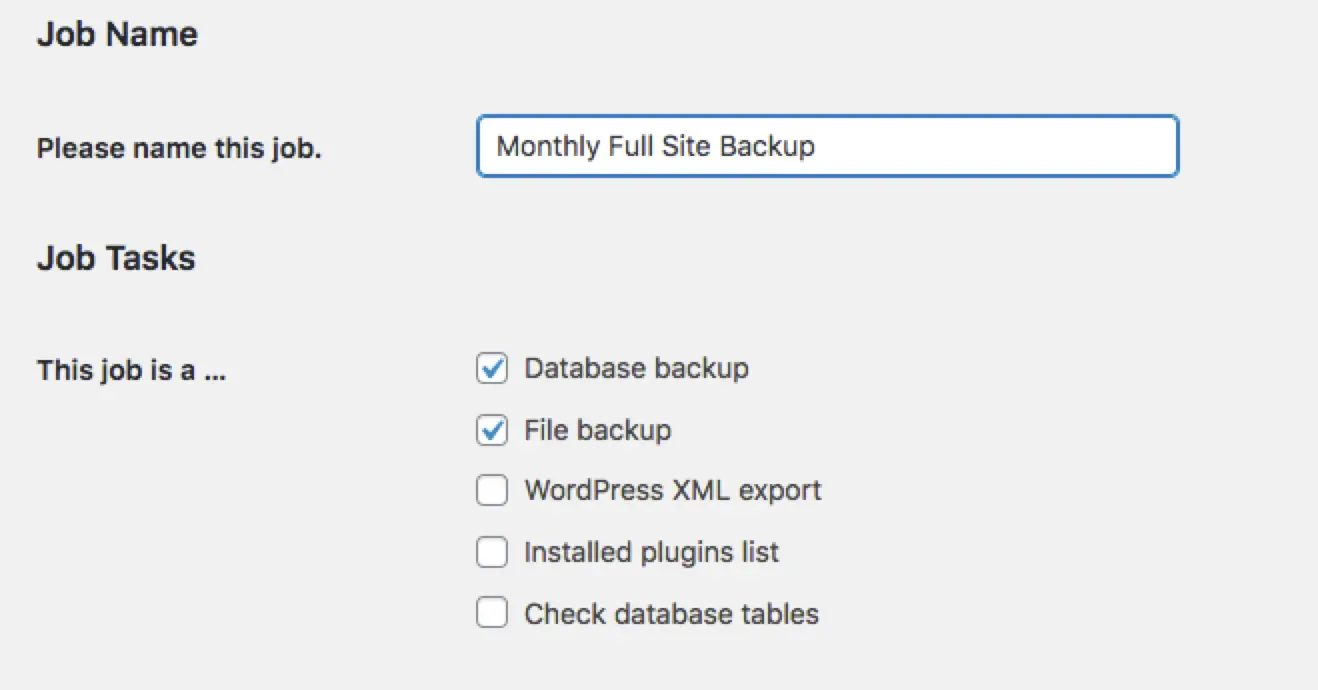 Job Tasks
To do a full site backup you will need to check both “Database Backup” and “File Backup” – these are the 2 core areas you want to include in your backup. If you want them both to be backed up at the same time, on the same schedule, you can create one “Job” that will cover both, in which case you want to keep both these boxes checked. This is good for a small site without too much activity.
If you run a site with a lot of content updates. I would recommend running 2 separate jobs – a more frequent one for the database and a less frequent one for the files.
If you want to schedule them separately you will create 2 Jobs – one where the database is checked and another where only the files are checked.

Job Destination
Choose Dropbox. This will be authenticated in a future step.
Log Files
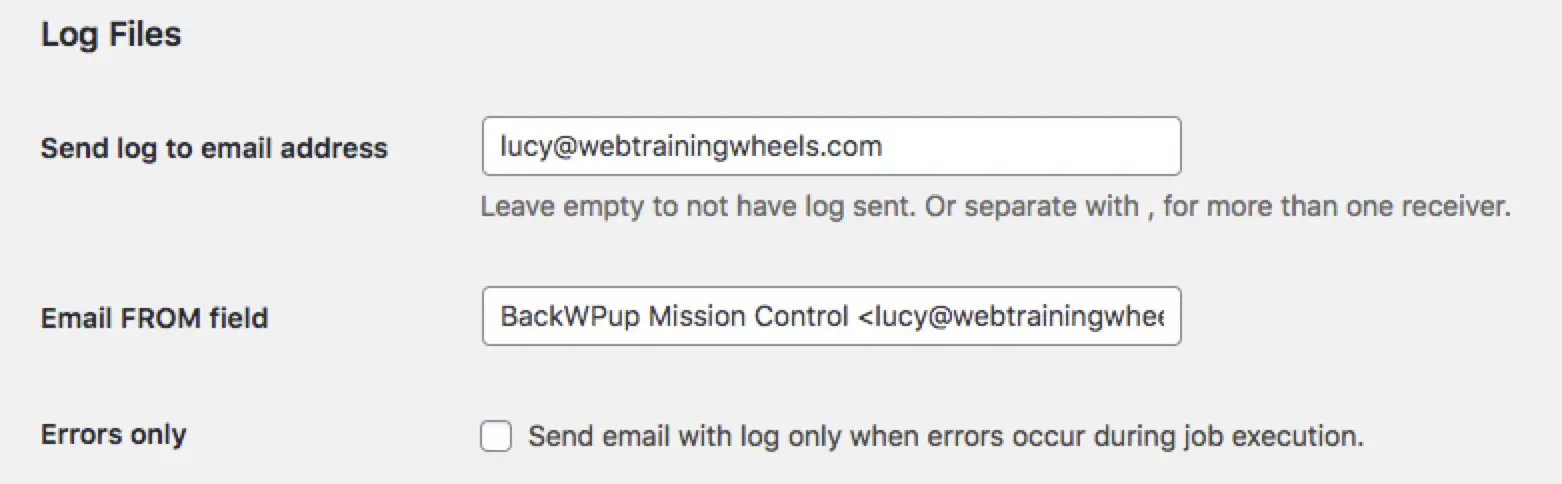
I recommend you un-check the “only send an email if there are errors” box at the beginning so that you get the logs emailed to you and you can make sure it’s running smoothly.
Generally speaking, if backup plugins of any kind don’t work properly, it’s usually due to a server issue. So you want to know right away if it’s not working so you can talk to your web hosting company and see if it can be resolved.
Once there’s a track record of the plugin working, you only need to be notified if there is a problem, and you could adjust this setting.
Schedule tab
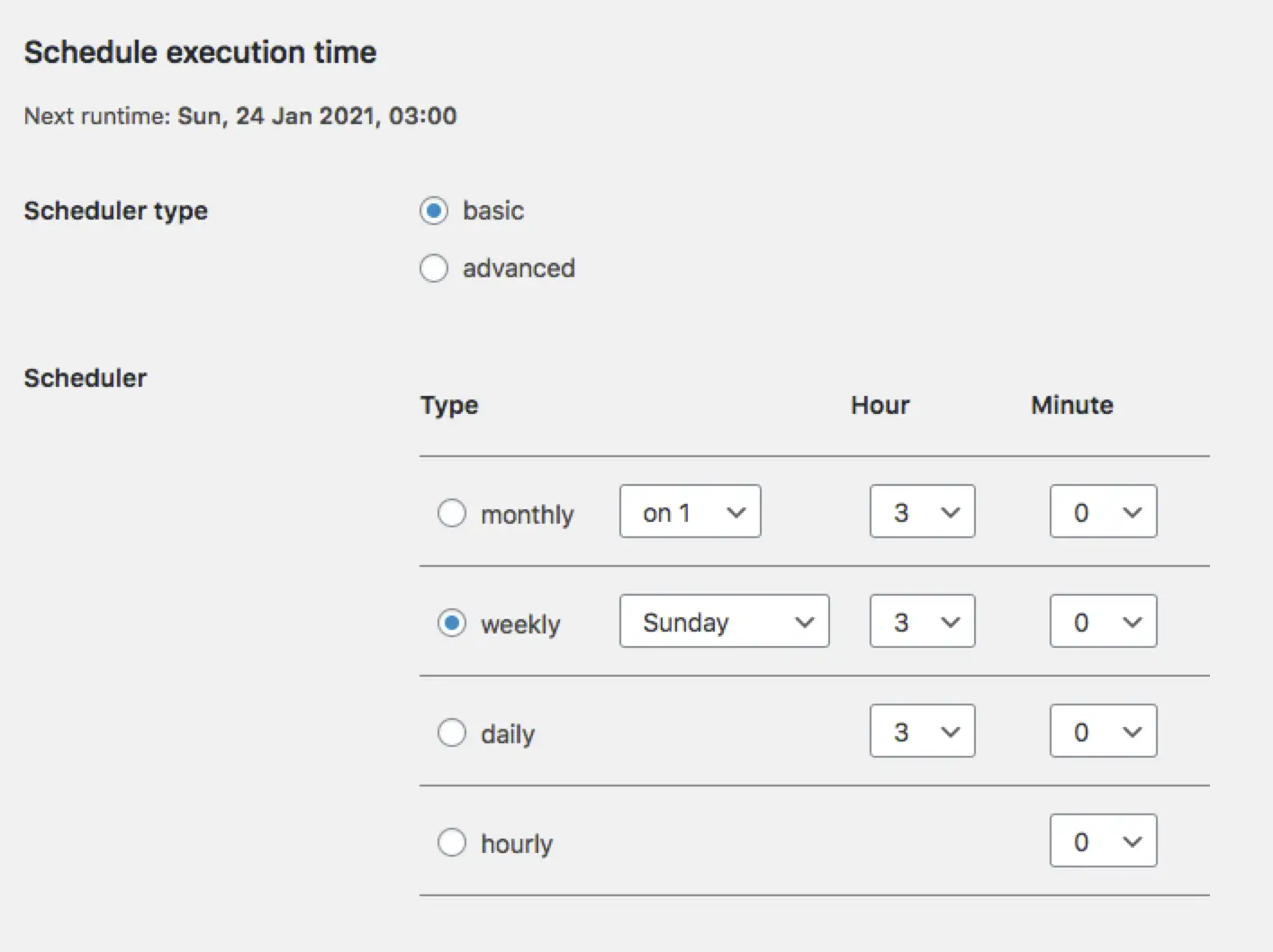
For the “Start job” option, choose “with WordPress cron.”
Next, select how often you want the backup to run. If you blog frequently you may want to do a daily database backup. If you don’t blog that much, weekly may be more appropriate. The hours/minutes are on a 24 hour clock system. You could choose a time of low traffic, such as during the night, so that it doesn’t divert any resources from your site.
DB Backup tab
If you selected “database backup”, this tab will appear and here you can select the database tables you want to back up. I use the default setting, which is to back up all of them.
If you have a huge database select the GZIP option to make the file smaller.
Files tab
This tab will appear if you selected “file backup” as the job type. Here you can specify exactly what you want to back up.
The default settings are pretty smart – they exclude common folders that aren’t needed, like your cache folder (if you’re using a caching plugin), and other backup folders. Check the list and make sure to exclude anything else that’s not needed.
 Backing up the core WordPress files in wp-admin and wp-includes isn’t strictly necessary because these can be downloaded any time from WordPress.org. Or, if you create a basic WordPress installation through your host, they will already be there. So I usually exclude these.
For a thorough backup, you have to include your uploads folder, theme and plugins.
But you may want to exclude theme folders of inactive themes because it’s a waste of space to back them up. In any case, old themes and plugins you’re not using should be deleted for security purposes . You only need to keep your current theme and one default WordPress theme as a fallback, just in case.
To: Dropbox tab
Here you have to connect your website to your Dropbox account. There are 2 options: App access or Full access. To be safe, choose App access, which is the least amount of access required.
This will store backups within the Apps folder in your Dropbox account.
Click the button “Get Dropbox App auth code.”
A new screen will open in a new tab, click Allow to grant access.
You’ll then see a long “key” – that is a string of letters and numbers, which is a bit like a password. Copy that and paste it into the field in your WordPress site
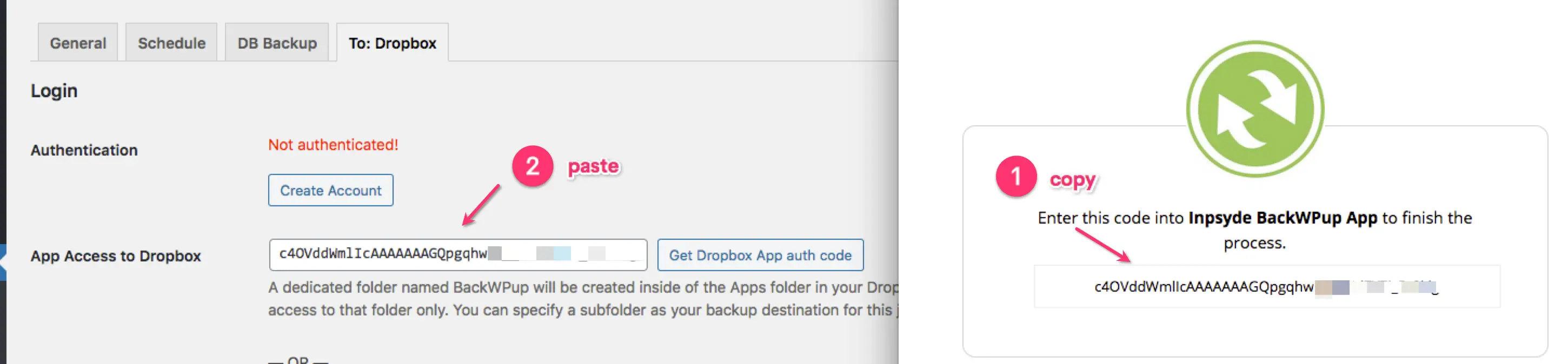 You can then customize the sub-folder name if you wish. This is more important if you’re going to be backing up multiple sites. Then it will be important to use a folder name that’s easy to identify, such as the domain name.

I usually like to keep a month or so worth of files. The idea is that, should your site get hacked, for example, you would have a previous, unhacked version to go back to. If you only keep 1 week, for example, but it takes you longer than 1 week to realize your site has been hacked, your only backup would be from the hacked version.
After saving the settings on this tab, you should see “Authenticated” at the top, to let you know you’re connected to Dropbox.
Once you’ve configured these options, click “save changes” and your backup will be configured!
To check that everything looks good, go to the “Jobs” tab and review the job(s) you created. There you will be able to see when the next scheduled run is and when the last run was.

The first time you set these up, the next run may not be for a week. So I like to initiate the first backup manually so I don’t have to wait a week for it. Simply mouseover the job name and click “Run now”. This also gives you a chance to make sure things will work correctly.
UpdraftPlus
Updraft is another free plugin. It has a slightly different set of options in the free version than BackWPUp, but should be sufficient in most cases. One big advantage for some users will be the free “restore” option that is included.
After installing and activating the plugin, the initial screen can seem a little overwhelming. Click on the “Settings” tab to get started:
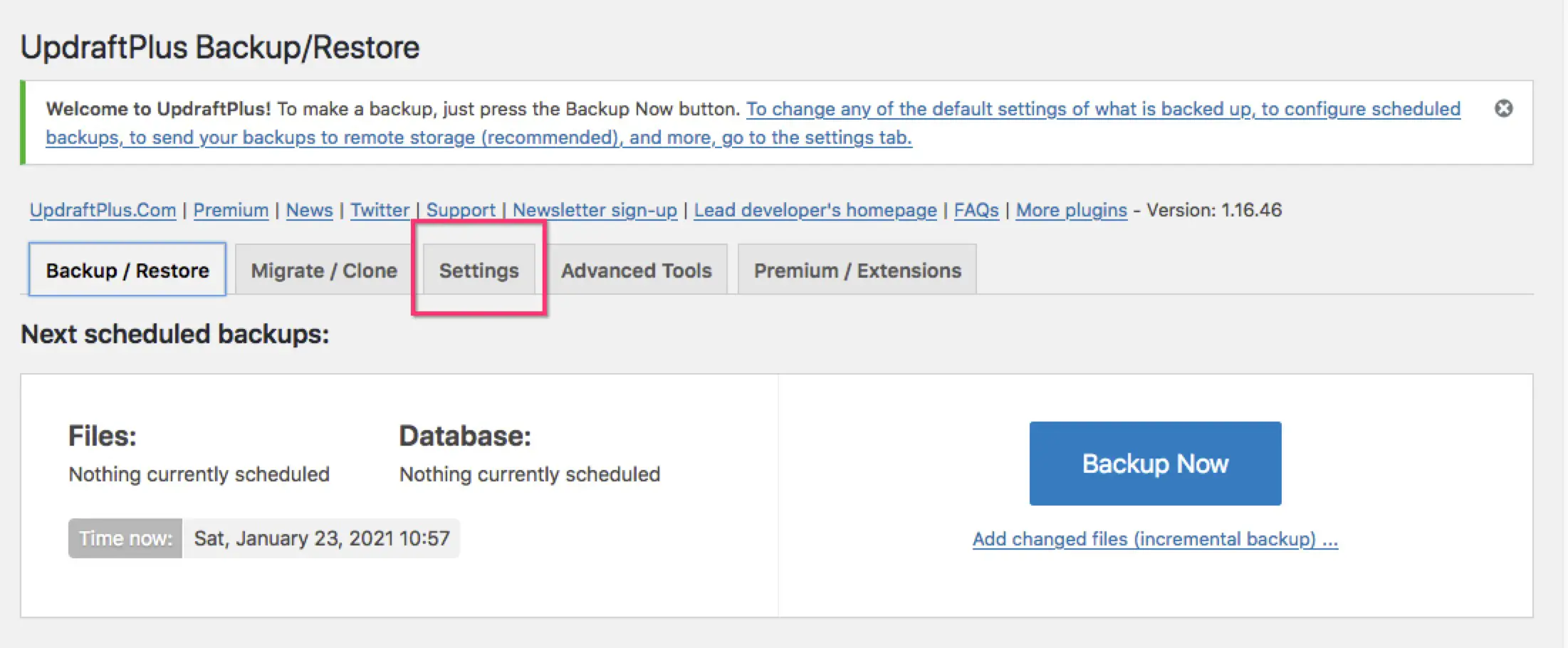
The process for setting schedules for each of the database and file system is slightly simpler than BackWPUp.
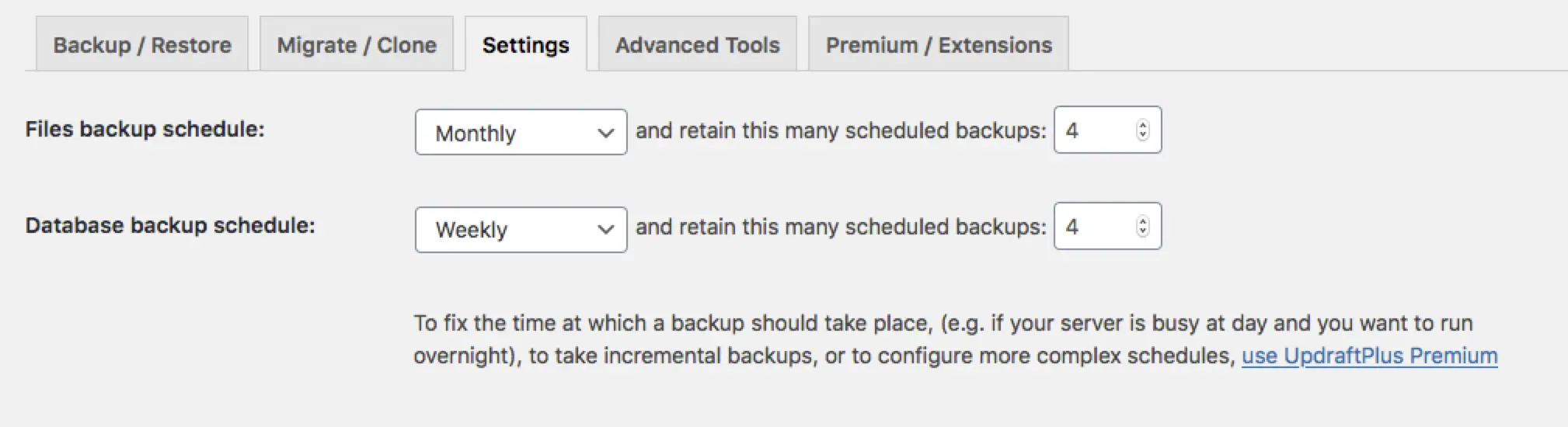 Make your selections for frequency and the number of files to keep, using the dropdowns.
Next, is the remote storage selection. Click the Dropbox icon. You’ll authenticate this in a future step.
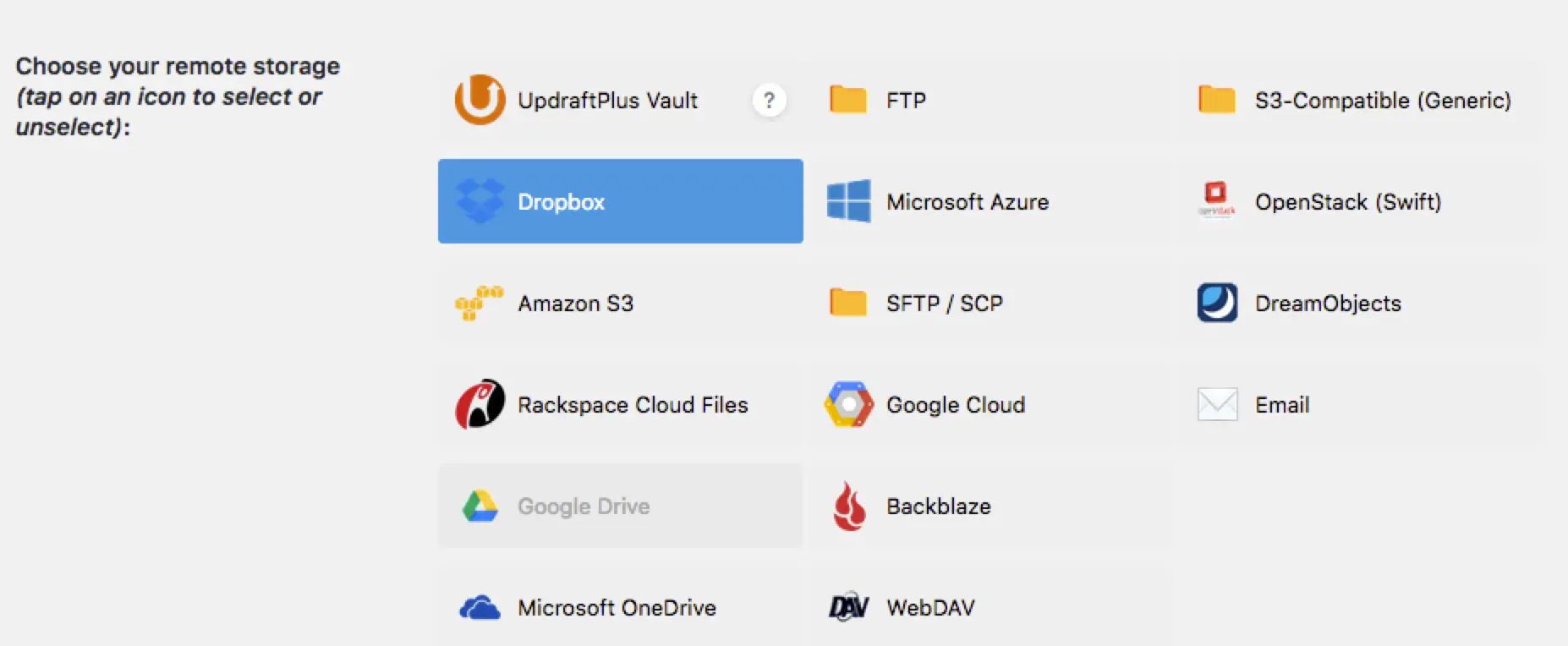
For now, just move down to the file selection options.
The default selections are quite smart, excluding commonly known cache and backup folders and other files you don’t typically need to backup, like your error log file.
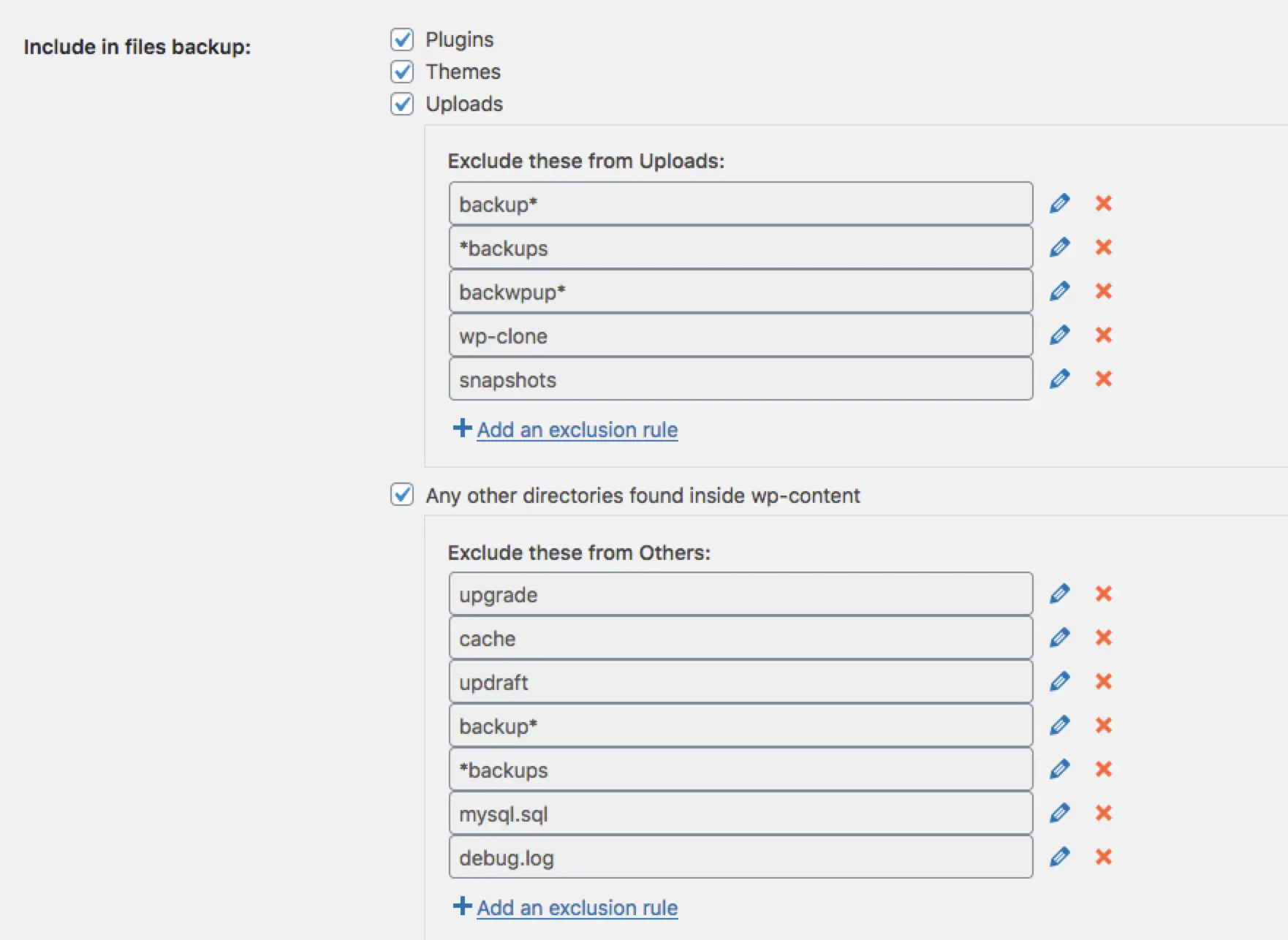
Note that it doesn’t include the core WordPress files in the backup. That’s OK because those can be downloaded directly from WordPress.org at any time. The important parts of the backup are the ones that are specific to your site.
Check the box to receive the email log, then click “Save Changes.”
The screen will refresh with a pop up that prompts you to authenticate your site with Dropbox:
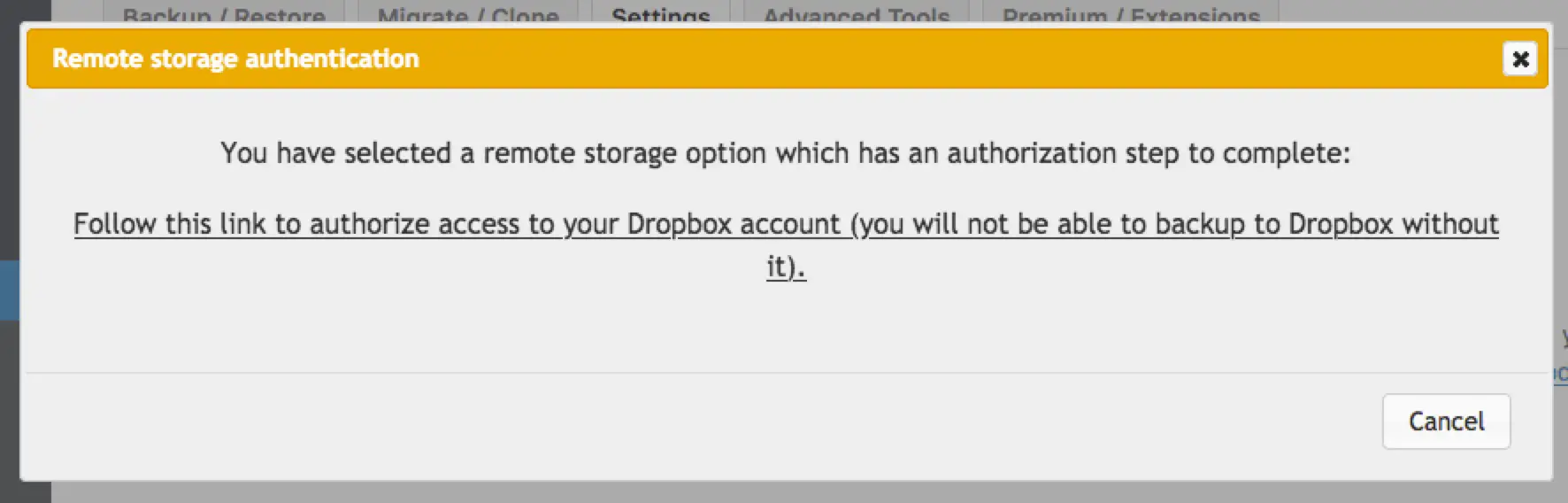

Click the link and then you’ll be presented with another screen – you just have to click the button to complete the authentication – no copy/pasting required. Your backups will be stored in a sub-folder of Apps in your Dropbox account.
Now you should be back on the initial screen with a success message, and with the details about your backup jobs:
 You can run a manual backup anytime by clicking the “Backup Now” button.
Restore feature
One benefit of the free version of Updraft is that it has a very handy restore feature. You’ll find it on the Backup/Restore tab. Scroll down to see a list of all your existing backups. You can restore any one of them from this screen. If something terrible happened to your site and you were starting from scratch, you could access this by creating a basic WordPress install, installing the Updraft plugin and then connecting it to your Dropbox account to access the saved backups.

Premium backup solutions
If you are not averse to paying a little money for a more fully featured backup solution there are a couple of good paid options:
- Both plugins mentioned above have premium versions with even more features.
- Jetpack Backups
- Blogvault
What is your preferred WordPress backup method? Share it in the comments!




Awesome, thanks Lucy for the great tutorial. It helped me a lot to backup my sites.
Very cool Lucy. I have been looking for a replacement for Amazon S3 which runs me around $100 per month, for some time. I keep hearing how low cost S3 is, but have had the opposite experience.
I also had problems with other DropBox plugins and I love my DropBox account, so it is the preferred backup location. I set it up, but am not sure if it works for multisite. I found this in their description.
"Multisite Support only as Network Admin"
If so, that would be a huge timesaver, both in terms of setting up the backup and in terms of recovery. To me it makes the most sense, as multi site is a single SQL DB install.
What an excellent way to use Dropbox! Already a user and this makes perfect sense, thanks for the post.