

While working at WP Rocket I saw so many Elementor customers struggling with a slow LCP metric, especially on mobile, due to their full-width “hero” images.
These full-width images at the top of the page often have text or other elements positioned over them, so most of the time this effect is accomplished in Elementor by using a background image on the container element.
While this looks great on the frontend of the site, it can often be damaging for the LCP score.
What’s wrong with using background images?
This is how most Elementor users set up their hero image:
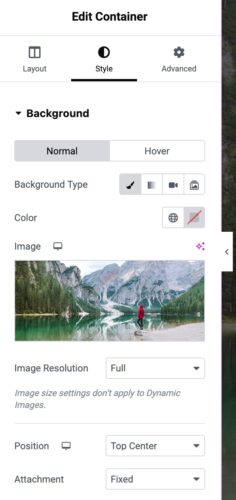
When you set a background image on a container, the reference to the image is not found directly in the HTML of your site. You can check that by going to view-source and searching for your image.
Spoiler – you won’t find it there! That means the browser won’t find it there either.
Instead, it’s found inside a CSS file, which is linked from the HTML. This creates extra work for the browser and it simply takes longer to discover, download and render the image.
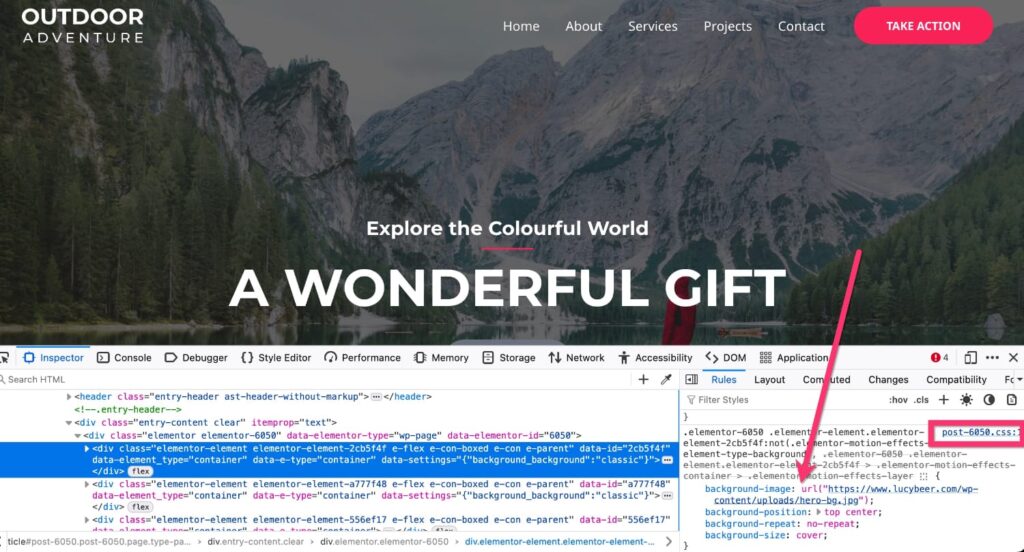
The faster the browser becomes aware of the image, the better for performance. That’s why having the image findable directly in the HTML is one of the requirements in Google PageSpeed to satisfy LCP Request discovery.
Additionally, because the image is typically used as a full-screen hero, you may have uploaded a very large file to make sure it’s big enough for all desktop devices, and unless you specified a different and smaller image for use on mobile, this big image is being downloaded to mobile devices as well. So you’ll notice an LCP issue even more on mobile than desktop.
How to fix the LCP issue
You can achieve the same visual look without using a background image.
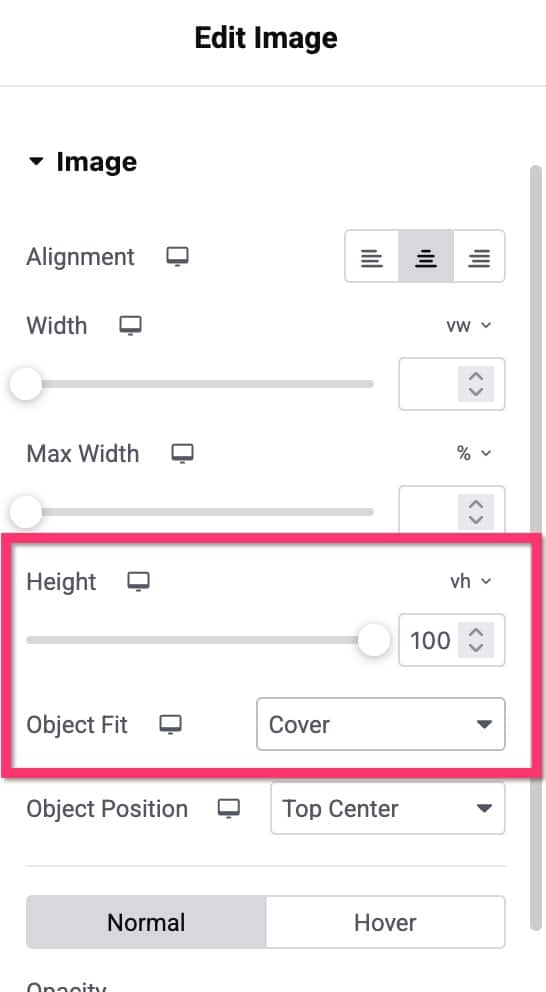
Instead, you add a regular image widget to your container then set it to use object-fit:cover. This gives the same full-width effect, but in a more efficient way.
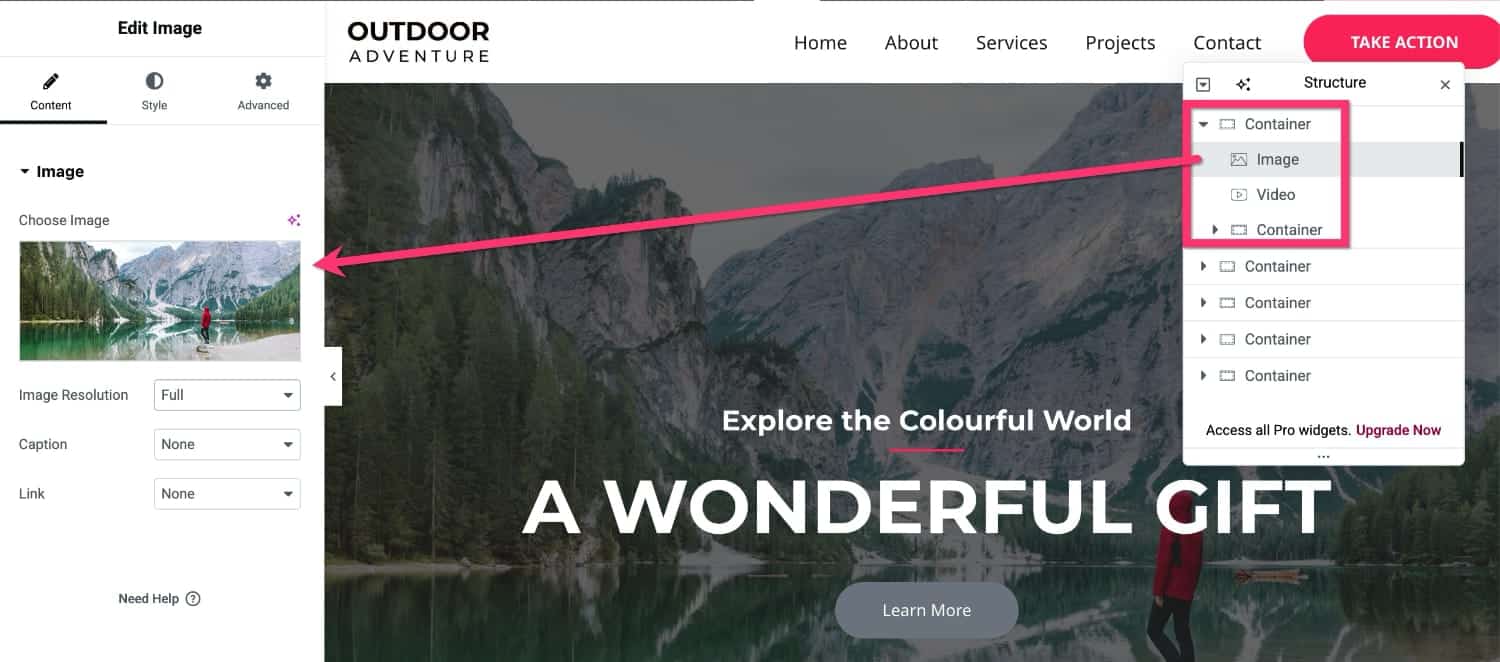
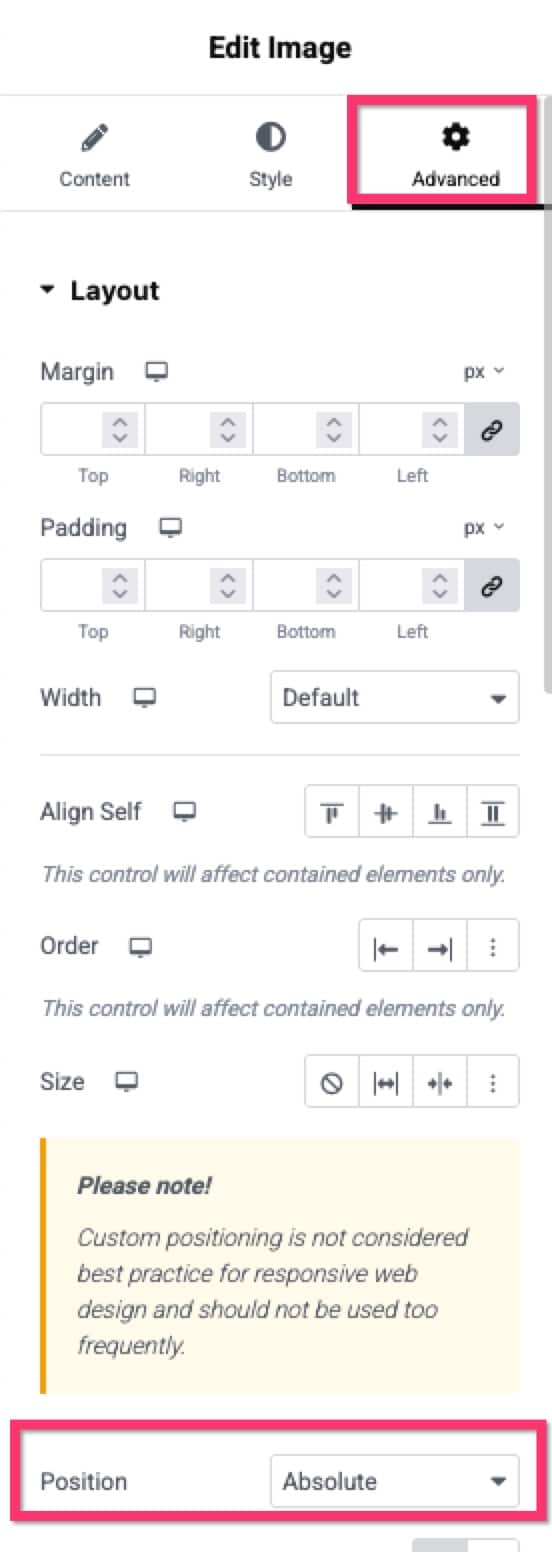
Here are the specific steps:
- Add a normal Image widget to your Container and select the image you want to use
- Give it a Height of 100vh, and in the Object Fit dropdown, choose Cover. This gives it the same full width effect.
- In the Advanced tab choose Position – Absolute.
- You may also need to set the z-index to -1 to allow other content to be visible over the top
And that’s it! Now you’ve achieved the same look but in a more performant way.
The hero image is now found directly in the HTML code:

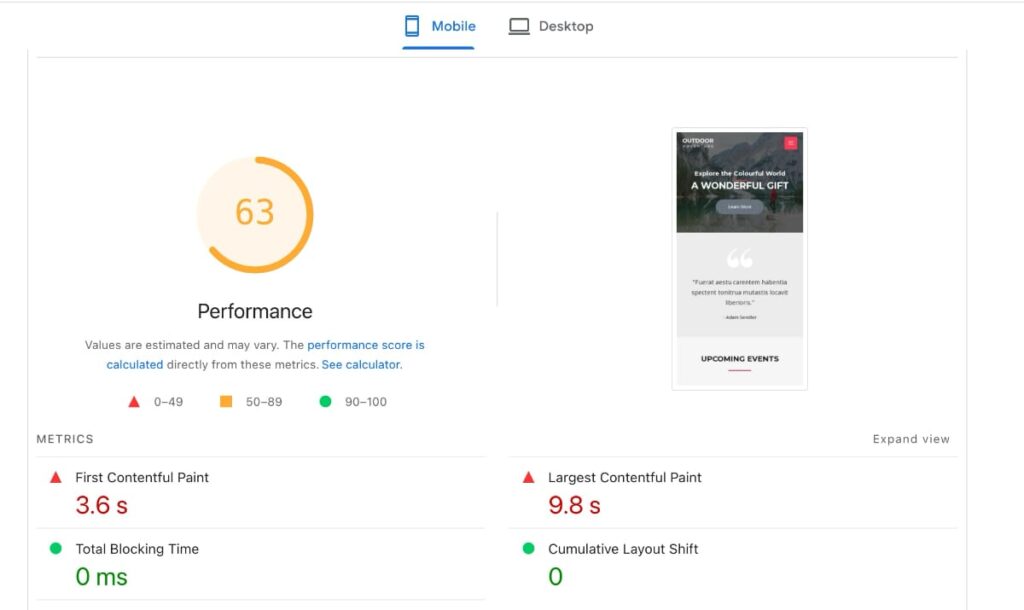
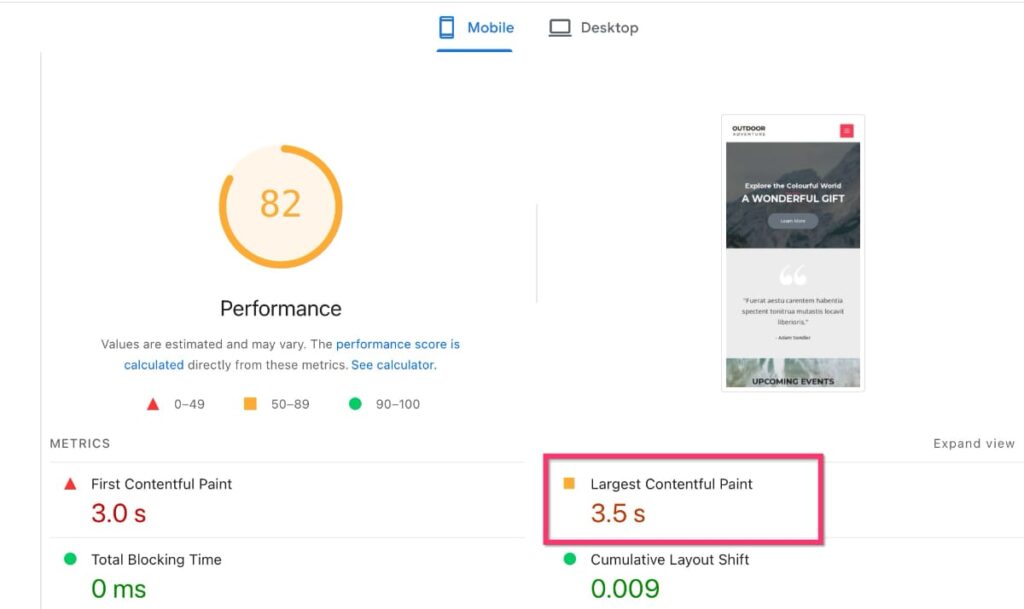
Changing nothing else except the image setup, the LCP on mobile drops from 9.8s to 3.5s:
Improve LCP for Videos
You can also use this methodology when using videos in your hero element.
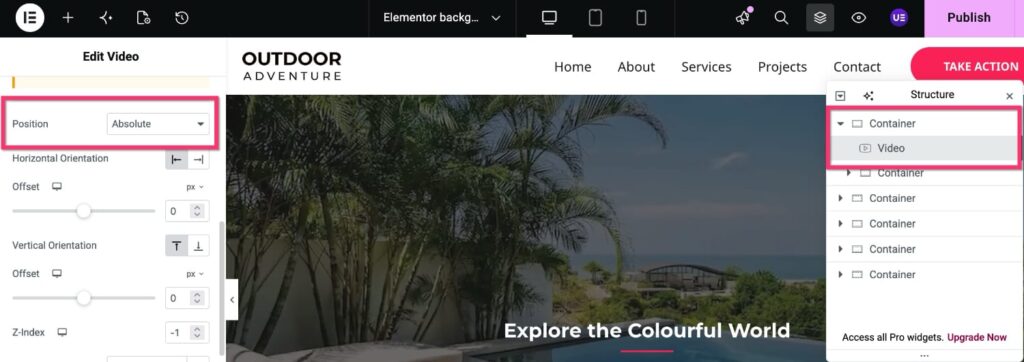
Instead of adding the video as the background of the container, add a video widget into the container instead. There isn’t a menu item to choose the object-fit setting, but it’s automatically set to cover. You will just need to set the Position as Absolute on the Advanced tab.
You should of course still preload your images to fully optimize your LCP element.