

A lot of WordPress site owners have heard about the need to “use a caching plugin”, and may even be using one without really understanding what it’s doing. It can be pretty technical, even for some developers, and a lack of understanding leads to frustration when things go wrong.
I want to try and demystify it a little. When you have a better idea of what’s happening in the background, it’s easier to troubleshoot things.
There are several different kinds of caching, like browser caching and object caching for example. But what we are talking about in this post is specifically page caching. This is the kind of caching that plugins like WP Rocket, WP Super Cache, WP Optimize and others do.
Server caches like Varnish and NGINX are similar, and the high level concepts still apply but because they don’t create HTML cache files on the server disk, there are some differences.
What Does Caching Do?
Most articles will explain page caching in terms something like this:
When a visitor comes to your WordPress site, their browser talks to your web server which loads up WordPress – this involves PHP processing, making requests to your database, sending files back to the browser to finally be assembled into a fully formed webpage. This can take several seconds – an eternity to modern web surfers.
Caching replaces that process by cutting out much of the processing work, and sending a static HTML file to the browser instead, which is much faster.
And there’s an image like this:
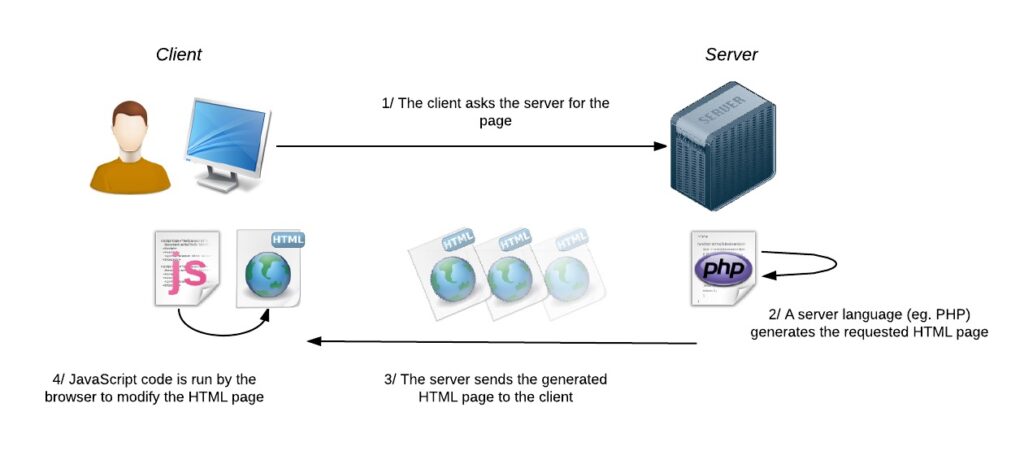
While all of that is technically true, it doesn’t really make much sense to most people, and doesn’t help you get a grasp on what’s going on.
Caching – The Big Picture
One of the best explanations of caching I came across was at a Wordcamp talk ( I wish I could remember who the speaker was so I could properly credit him).
The presenter asked the audience, what’s 3,549,752 divided by 23,234 (or something equally complex)?
Everyone fell silent. Some people pulled out calculators to do the math, and finally someone yelled out the answer after a few seconds.
Then the speaker asked the exact same question again. This time everyone was able to immediately call out the answer.
This is a great demo of the concept. The initial time-consuming process was done once, then after that, when the same question was asked, the answer was readily available, and delivered much faster.
When applied to the context of your website – this translates to the ability to deliver a webpage with a super-fast response time, without having to do all the time-consuming processing in the background, every time the page loads.
The first visitor to a particular page on your site is “asking the question” and as the “answer” is provided, the page is cached. The next time that, or another visitor goes to the same page, ie. “asks the same question”, the cache will provide the answer, i.e the web page, much faster.
In practical terms, what does this mean for your WordPress site?
A caching plugin is responsible for providing those fast answers. The plugin is basically taking snapshots of all your webpages, in the form of HTML files, and showing them to your visitors.
All of the heavy-lifting is done the very first time a page is loaded – WordPress does it’s normal process to display the webpage. Once that process has happened the first time, your caching plugin takes a ‘snapshot’ and then, when the next person comes to your site, it whips out the snapshot instead of going through the whole rigamarole again.
Turning dynamic content into static files
If you ever made a site using HTML (Dreamweaver, anyone??) you would be used to having an HTML file for every page on your site.
But if you’ve ever looked at your WordPress site via FTP (or the file manager in your cPanel), you won’t see a file for every page. That’s because the page is dynamically generated from the database fresh each time it loads – there is no physical file.
When you have a caching plugin, you will actually see a cache folder with all the HTML files in it. Each page is now represented by a static file. The name of the folder is the URL, and the contents are the HTML cache files which are the snapshot of the page:
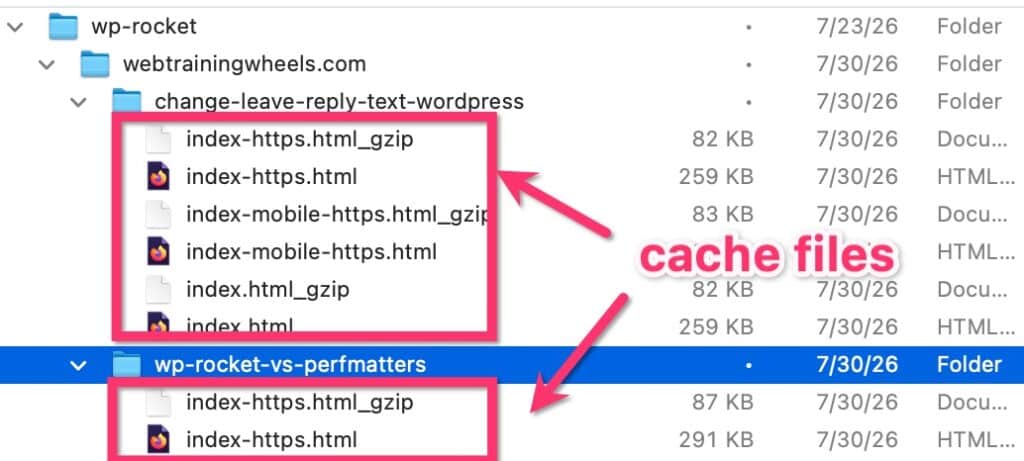
And that file will only be changed when the cache is refreshed.
So in technical terms, the “snapshot” is a static HTML file. Static means it doesn’t change by itself. It’s going to stay the same unless something tells it otherwise.
This is where things might get a little tricky….
Why does caching sometimes seem to break things?
Two common things that can go wrong with caching are:
Out-of-date Content: Content updates require cache updates
Imagine you take a photo of your house, which is brown. Tomorrow, you paint your house blue. The photo you have of your house is now inaccurate.
That’s because the photo is the “cached” version of your house. So if you want an updated photo, you have to take a new snapshot.
You see where I’m going?
The house is your website. You have a cached version, then you change something on your site, so now the cached version is out of date. So you need to clear the cache for that page so a new snapshot can be generated, if you want your visitors to see the very latest version.
Some caching plugins (like WP Rocket) handle this intuitively. It sees that you “painted your house” i.e. published a new post (for example), so it takes a new snapshot for you automatically. This way your cache stays up to date.
Dynamic content might not be cache-compatible
When you take a snapshot of your content, it’s a moment frozen in time. If your WordPress site is like a movie, your cache is like a freeze frame from that film.
This won’t matter too much if all you have on your site are blog posts or pages that consist of text, photos, videos – things that don’t change unless you yourself decide to change something (like going into the editor and changing a photo, or some text).
But modern websites can have a lot of fancy features, like content that updates automatically (without you doing anything), or that adjusts according to who is looking at the page.
A couple of examples of dynamic content:
Let’s say you have a sidebar widget that displays the open hours for your business. And there’s a message that displays when the business is open, and a different one when it’s closed. And this is based on detecting the current time. This is an example of dynamic, not static, content.

Another example could be an ecommerce site that has a little cart icon on every page which tells you how many items are in your shopping cart. That feature is specific to each visitor because each visitor has different items in their cart.

These are the most common examples of content that needs to be treated differently with caching.
So this is where I have to get a little technical because if you have this type of issue on your site, you’ll need the technical terms in order to find a solution.
In technical terms, if your dynamic features (anything from rotating banners, voting systems, social feeds, user-specific features etc) are using purely PHP to display the output, they won’t work with caching. That’s because PHP doesn’t run on a cached page – PHP is part of the time-consuming work that gets cut out when you use page caching.
Without caching, every time a person comes to your website their browser asks your webserver for the webpage. PHP is a programming language, which in this case runs on the server to process this request – finding the right content from the database and sending it back to the browser. It’s a messenger of sorts, ferrying info from the database to the browser.
Earlier I said that caching creates snapshots. PHP is engaged the first time a page loads, but once the snapshot is taken and turned into a static HTML file, PHP goes on lunch-break. This means that no more messages are going to come from the database to your browser via PHP.
So when things need to change on your site, like your cart icon, or your business hours indicator, you need a different messenger. In this case, another programming language called JavaScript (JS). JS operates on your browser’s side rather than on the server, so even when your page is cached and PHP is relaxing with a cup of tea, you can still call upon JavaScript and its sibling AJAX to do some work for you.
So anything dynamic needs to be handled using JavaScript / AJAX because that WILL run on a cached page.
For the regular WordPress user, this means:
- You ask your developer to use Javascript for dynamic features.
- You find a plugin that handles the dynamic content with JavaScript and states that it is compatible with page caching
- If neither of the above are possible, turn off caching for that page or remove the feature if it is less important for user experience than speed
I hope this helps to demystify caching a little bit. Once you get the hang of what’s actually happening behind the scenes, you might find it easier to understand how to fix things, when to clear the cache, and what to look for in a plugin that you want to work well with the cache.