

If you’re trying to speed up your site by using a caching plugin or other cache tool, it’s critical that you know whether or not the page is actually cached!
Caching can happen at different layers of your site so we’ll look at how to check:
- Page caching from a plugin
- Server caching from your host
- CDN caching
For the purposes of this post I’m referring specifically to page caching, so we’re talking about the HTML of the page. I’m not referring to browser or other caching of your files like CSS, JS, images etc.
I’m going to show you manual methods to check your page’s cache, but I’ve also made a tool that can check it for you: https://webtrainingwheels.com/is-it-cached/
Prepare for checking
When checking if a page is cached, make sure to visit your page under the conditions where it should actually be cached.
This usually means you’ll have to be logged out of WordPress because unless you’ve specifically configured your cache otherwise, caching is not normally applied while logged in to WordPress.
The easiest way to check is by using an incognito/private browser window.
Also keep in mind that you may need to reload the page to get the cached version.
How to check if your page caching plugin is working
Pretty much every caching plugin will add an HTML comment at the bottom of the page to show if it’s cached or not.
How to check the HTML page source
Each browser has 3 different ways you can get to the page source:
Firefox
- Mac keyboard shortcut: command + U
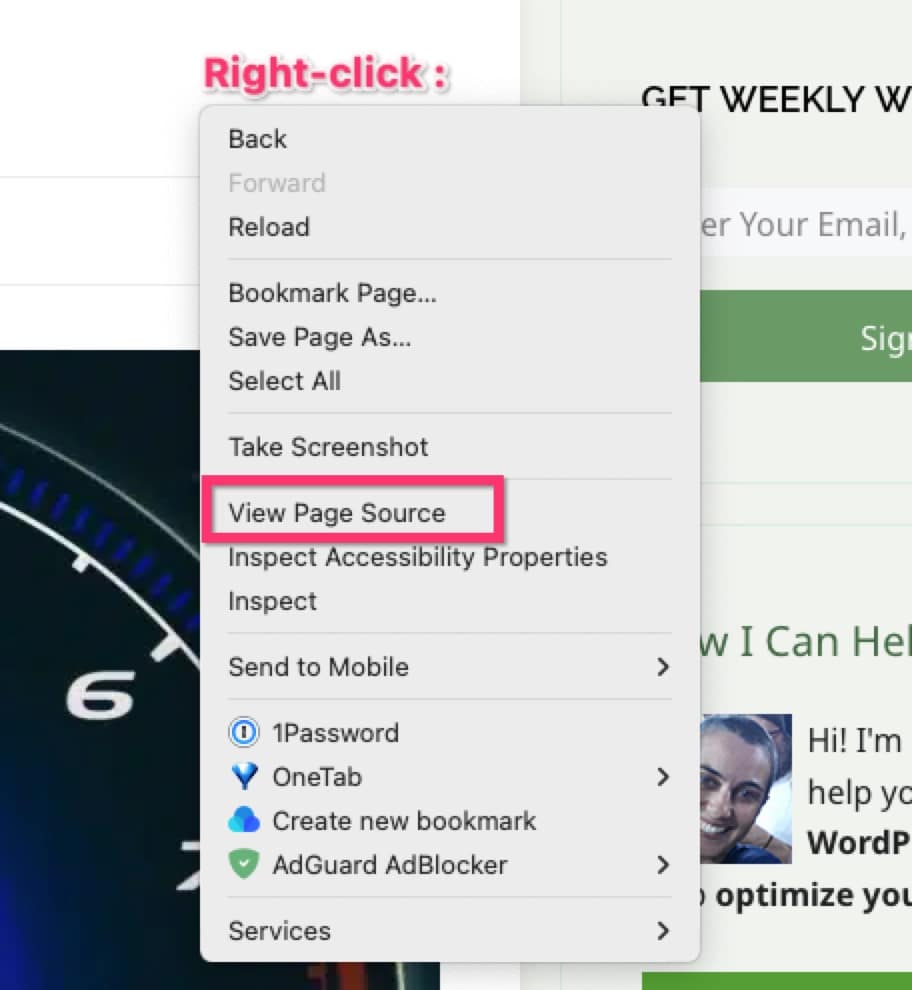
- Right-click→ view page source
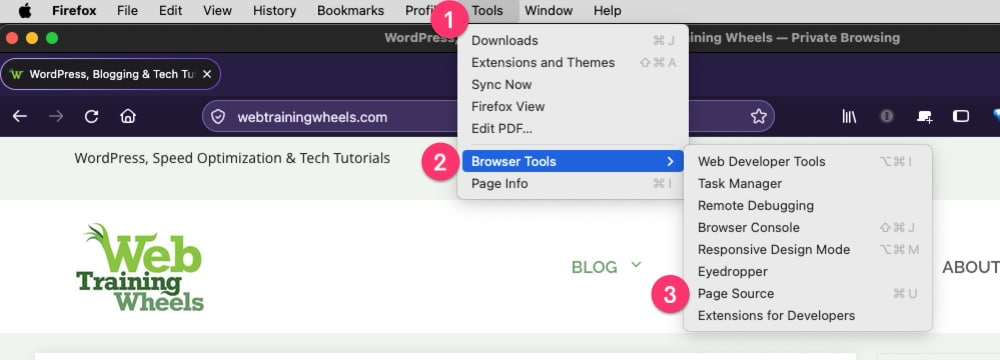
- Top menu → Tools→ Browser Tools → Page source
Chrome
- Mac keyboard shortcut: option + command + U
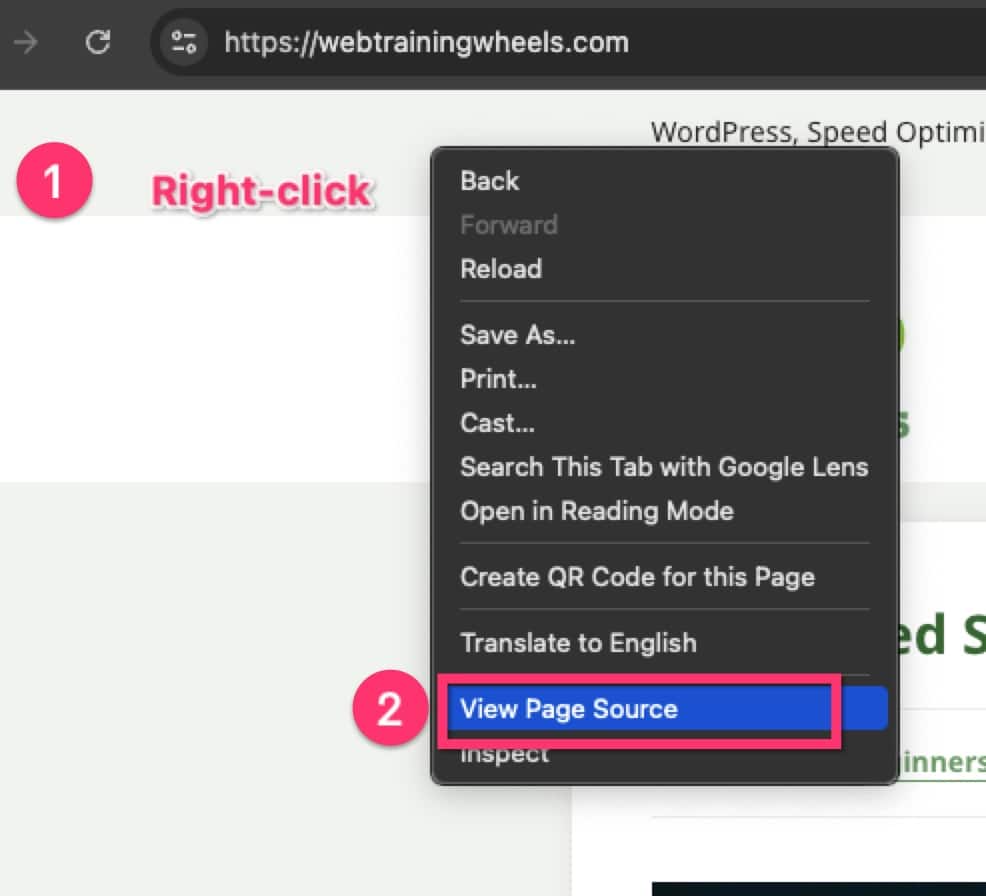
- Right click→ view page source
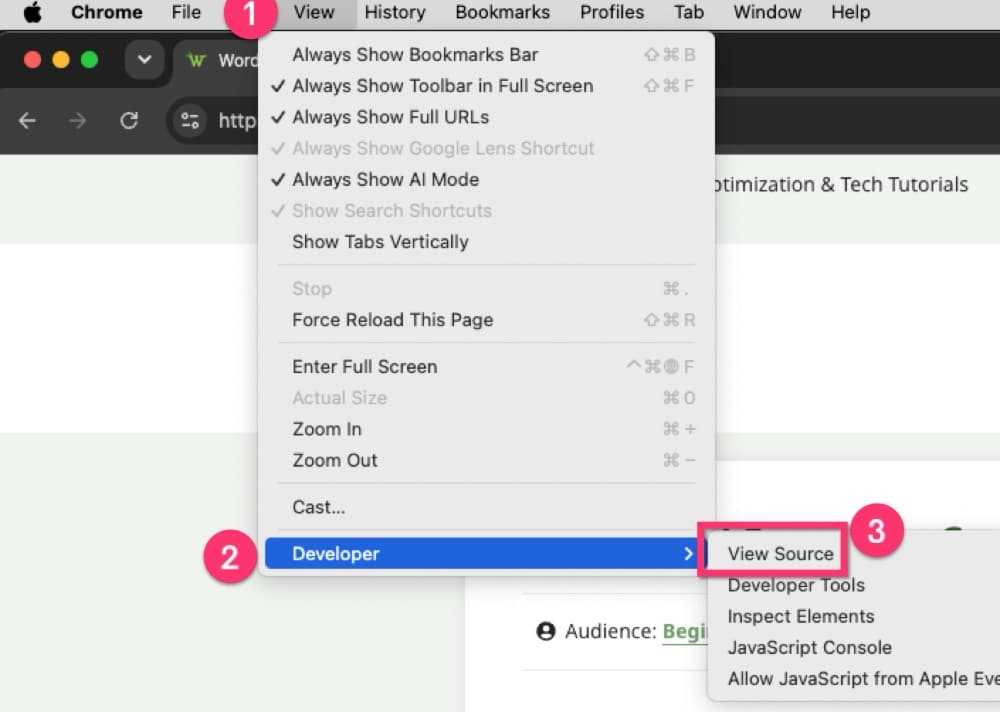
- Top menu→ View→ Developer→ View Source
For other browsers please see this guide.
Locate the footer comment
Once the page source is opened, scroll all the way down to the bottom of the page.
The footer comment should be visible in green. Here’s an example from WP Rocket:

As indicated in the screenshot, there’s 2 parts to the comment:
- The presence of the first part of comment indicates WP Rocket is active on the page, and it may be optimized but it doesn’t confirm the cache.
- The second part of the comment containing
cached @followed by a long number is actually a unix timestamp. The timestamp part indicates the time of the cache creation and therefore confirms that the page is actually serving the cache file.
Most cache plugins operate in a similar way, and checking for the timestamp part of the comment is what truly confirms that you’re looking at a cache file.
There is one “gotcha” with this method. If you are using HTML minification from an optimization plugin it may remove the comment. So consider disabling that feature before testing your cache.
Here’s a list of the HTML footprints from some common caching plugins. If you don’t see the plugin you are using here, check their documentation. Or, drop me an email and I’ll try to add it to this list.
WP Rocket
This website is like a Rocket, isn't it? Performance optimized by WP Rocket. Learn more: https://wp-rocket.me - Debug: cached@1730272532
Flyingpress
Powered by FlyingPress for lightning-fast performance. Learn more: https://flyingpress.com. Cached at 1791569898
Litespeed cache
Page cached by LiteSpeed Cache 7.9.1 on 2026-10-06 23:20:22
Breeze
Cache served by breeze CACHE - Last modified: Wed, 07 Oct 2026 09:42:31 GMT
WP Fastest Cache
WP Fastest Cache file was created in 0.427 seconds, on September 17, 2026 @ 1:21 pm
WP Super cache
Cached page generated by WP-Super-Cache on 2026-10-08 00:27:15
W3 Total Cache
Performance optimized by W3 Total Cache. Learn more: https://www.boldgrid.com/w3-total-cache/?utm_source=w3tc&utm_medium=footer_comment&utm_campaign=free_plugin Lazy Loading Served from: www.example.com @ 2026-10-07 20:42:15 by W3 Total Cache
WP Optimize
Cached by WP-Optimize (gzip) - https://teamupdraft.com/wp-optimize/ - Last modified: October 7, 2026 11:37 am (UTC:-6)
Airlift
This website is optimized by Airlift. Learn more: https://airlift.net. Template: 6ac4922446fa5c406fe2f6f9. Config Timestamp: 2026-10-06 06:15:56 UTC, Cached Timestamp: 2026-10-07 11:26:58 UTC, Optimization Time: 145.94ms, Asset Normalization Time: 0ms
How to check if your server cache is working
A lot of managed WordPress hosts provide Varnish or NGINX caching. These types of server-side caching don’t include an HTML comment in the page.
Instead you have to check the response headers for the page.
This is information that comes from the server and is visible by using the developer tools of your browser.
How to check the cache headers of a page
- Right-click on the page and choose Inspect to open the developer tools panel. Or go to View at the top and then choose Developer tools.
- Click on the Network tab. For the purposes of this test make sure the “disable cache” box is unchecked. There are times when that’s useful but not for this.
- Make sure the HTML request is selected. It’s usually the first one in the list. Refresh the page if you don’t see it.
- Click on that and you will see the headers. Make sure you’re looking at the response headers section
- If the cache header shows HIT it means the page was served from the cache.
- The first time you load the page you’re likely to see MISS. Reload the page and it should then be HIT. If you reload a few times and consistently get a MISS, the page isn’t cached.
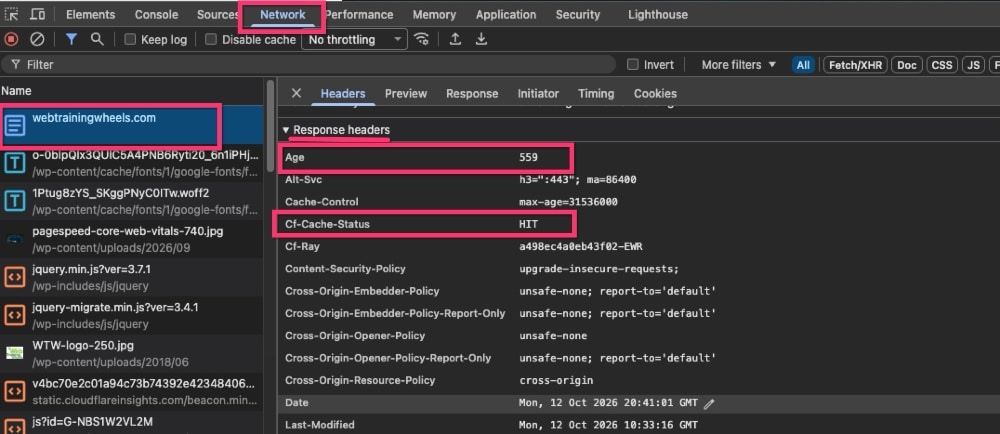
Here are some common headers from server-side caches.
Varnish
x-cache– shows if the page is cached or notAge– shows how old the cached version is, in seconds
NGINX
x-proxy-cache
Nitropack
x-nitro-cache
Many managed WordPress hosts have a custom header you can check:
WP Engine
Their header come in a cluster:
x-cache-groupx-cacheablex-cache
x-cache is the one that will show a HIT or MISS. The others may give you extra info about the cache being used or why it was bypassed.
Siteground
x-proxy-cache
Kinsta
x-kinsta-cache
WordPress.com
x-nananana: Batcache-Hit
Need help speeding up your WordPress site?
Check out my speed optimization services and get a free video audit of your site!
How to check if your CDN cache is working
You’ll use the same method as above – checking the response headers.
Cloudflare caching
If you are using Cache Rules (not APO) you should see these headers:
cf-cache-status– will show a HITAge– will show how old the cache is, in seconds
Cloudflare APO
cf-cache-status: HITAge– will show how old the cache is, in secondscf-apo-via: tcache
Sucuri Firewall
x-sucuri-cache
Use a tool instead
I also made a little tool you can use that does these checks for you. Go to:
https://webtrainingwheels.com/is-it-cached/
If you find any issues, please contact me so I can fix them!