
Enhancing Your WordPress Gallery

I’ve posted previously about the in-built gallery feature of WordPress,and some of the simple things you can do using the shortcode. With this post I wanted to share a few more tips and some apparently less well-known features such as using multiple galleries on one page.
Multiple Galleries In One Page/Post
In WordPress terms, when you upload images to a specific post, those images are attached to the post and become part of the default gallery for that post which you can insert into your post from the media uploader.
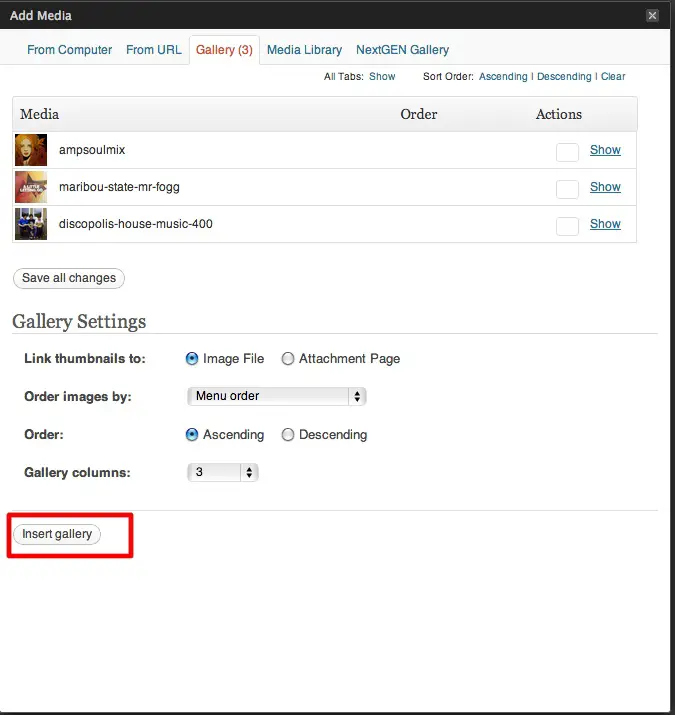
If you only use the media uploader, it would appear that you can only insert one gallery per post – the images you’ve attached to that specific post. But what if you want to include multiple galleries in one post? It doesn’t seem possible using the standard media uploader, but if you use the gallery shortcode you can do it easily. (I describe the basic use of the gallery shortcode here)
1) First you will need to know the ID numbers of the images that you want to use. The easiest way to do this is add a plugin called Reveal IDs This is a very handy plugin that adds a new column to the WP dashboard showing IDs for posts, pages, media etc.
2) After installing and activating the plugin go to Settings > Reveal IDs and make sure “Show Media IDs” is checked.
3) Next go to your media library and you will be able to easily locate the images you want to use and find their respective IDs.Write down the IDs (unless you have a photographic memory ;) ).
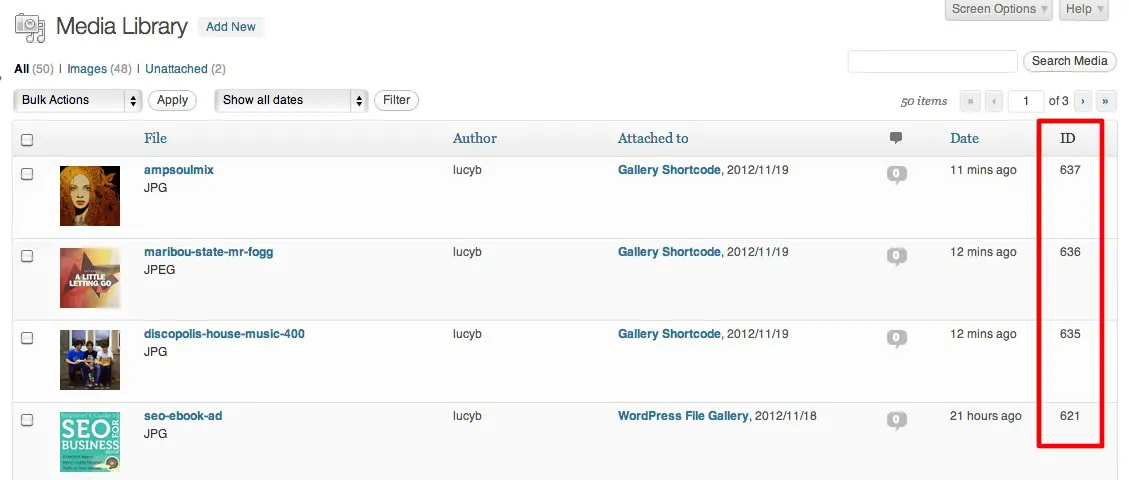
4) Go back into editing your post where you want to place your additional gallery. Then simply type the following shortcode to add those images as a gallery:
[ gallery include=”637, 636, 635″ ]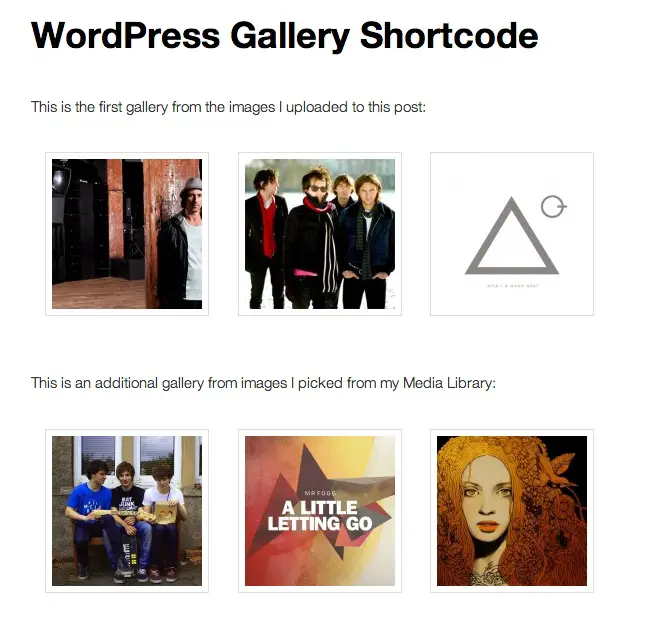
Other uses of the shortcode:
1) If all of the images you want to use are all attached (i.e. part of that post’s gallery) to another post, you can insert them using the ID of that post:
[ gallery id=”123″ ]
(where 123 is the id of the post)
2) You can also exclude certain images from appearing in your gallery:
[ gallery exclude=”21,32,43″ ]Other Gallery Enhancements
Linking Each Image To A Specific URL
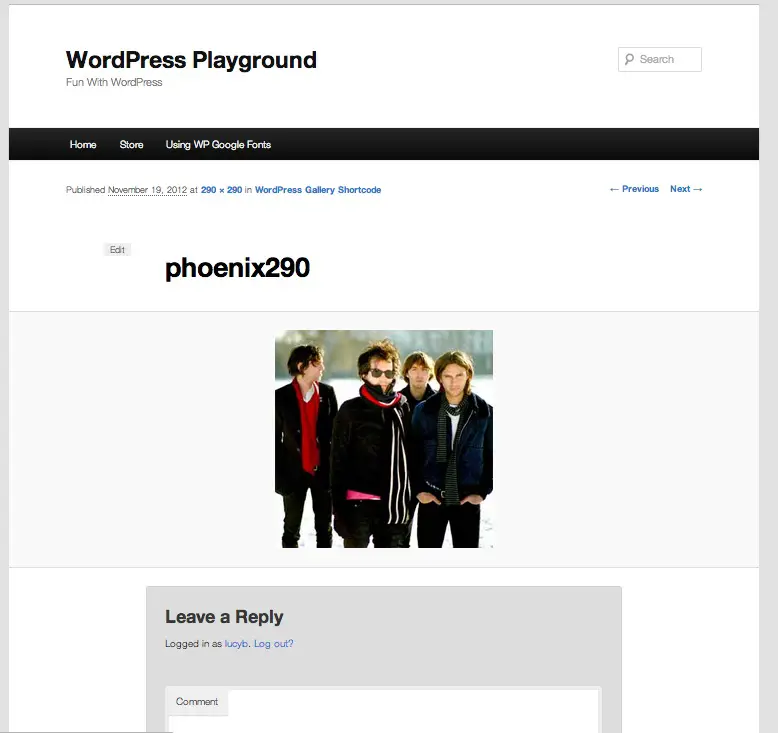
By default you can link the images in your gallery to either the file itself or the attachment page for that image. If you link to the file it will simply open the image in a browser window by itself.

The attachment page is like a stripped down post page which displays the image within the context of your theme and allows people to leave a comment.
What if you would like to link each image in the gallery each to a diffent location such as an external website, or other pages on your site? Well you need a plugin to do that. WP Gallery Custom Links is a small plugin that allows you to do this very thing. It adds an additional field for you to specifiy where that image should link to from the gallery.

Using A Lightbox to Display Your Gallery
If you would like your gallery to open up in a lightbox or slideshow you can add one of an infinite number of plugins to do this. I happen to like Simple Lightbox or Lightbox Plus. You can also activate the Carousel feature in Jetpack to display images as a nice slider. If you are using Simple Lightbox, you will find the settings on the Settings > Media page where you can activate and configure the plugin.
One thing to be aware of when using a plugin like this is that you will need to upload large sizes of your images and insert them into the gallery as thumbnails, in conjunction with using the link to file option. So when you insert the gallery on your page, you will see thumbnail images, but when you click on them, a larger version will open up in your lightbox or slideshow.

header image: http://www.flickr.com/photos/alttext/298812490/